
If you regularly download a number of apps on your iOS device, then your Home Screen has probably become a little messy. Thankfully, it is possible to create iOS app folders and group the necessary apps into a particular folder to access them in no time. Follow our quick guide to find out how.
Create iOS app folders in 3 easy steps:
1. Tap and hold any app’s icon on your iPhone until all the icons start to jiggle
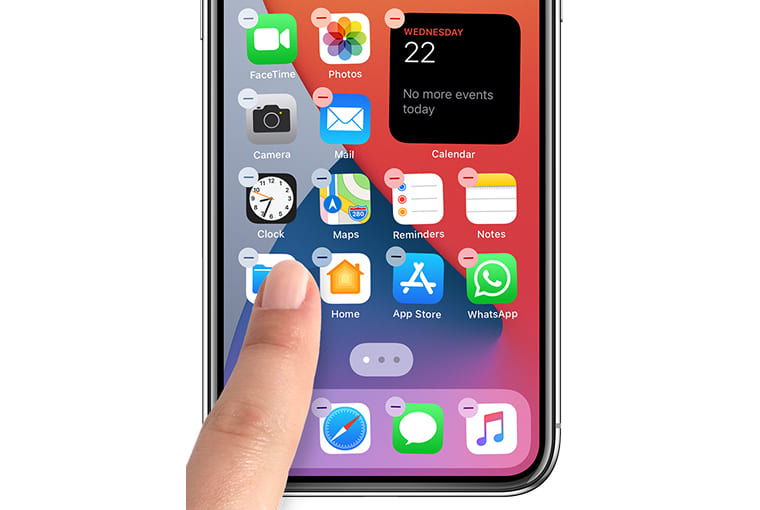
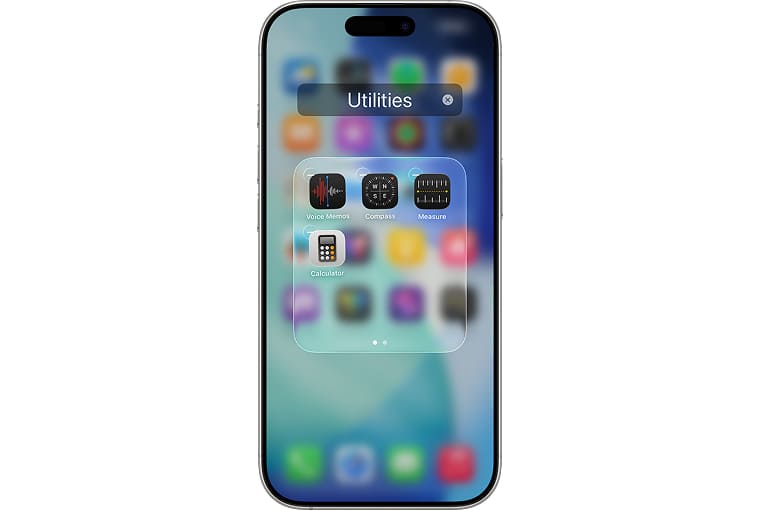
2. Once all the apps start jiggling away, tap and drag the app you want onto a second app to tuck into a folder. Now, you’ll see a new folder being automatically created.
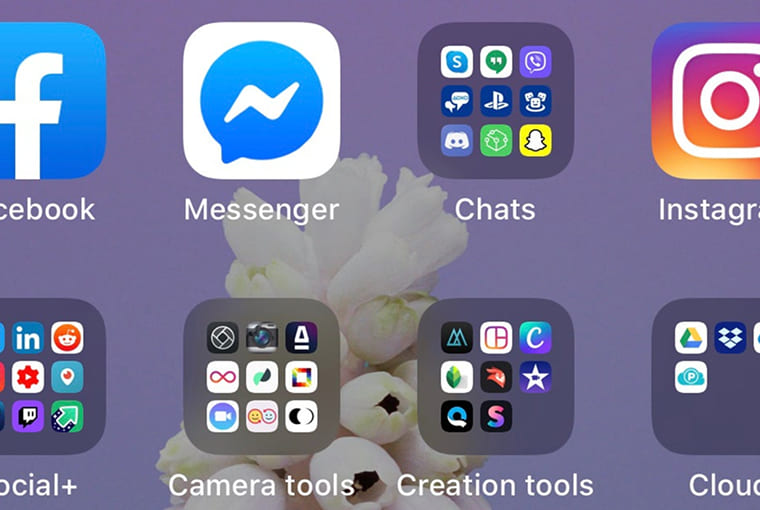
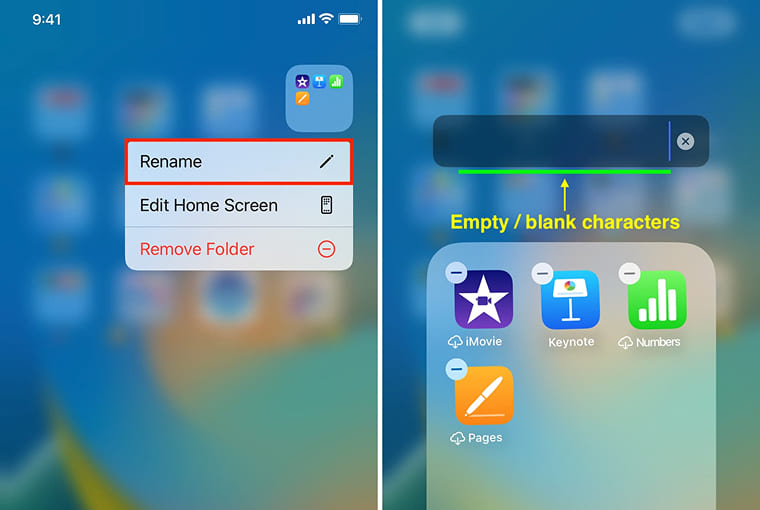
3. By default, iOS will try to name this new folder on the basis of the apps you insert in it. You can change its name as per your choice by tapping on the text field and edit it as you want
In case you want to add more apps to the folder, tap on the background to minimize it and drag other apps to add into it. After the completion of filling up your new folder, hit the Home button to stop jiggling.
You may also like: Best ways to watch movies with free movie apps for iPhone and iPad
Create iOS folders with iTunes
If iTunes is your apps-downloading weapon of choice, then you would be quite eager to know how to create iOS app folders using iTunes. Fret not as our how-to box is not empty yet. Let’s dive deep into our how-to box to know more:
1. Connect your iOS device to your Mac and select your device from iTunes sidebar
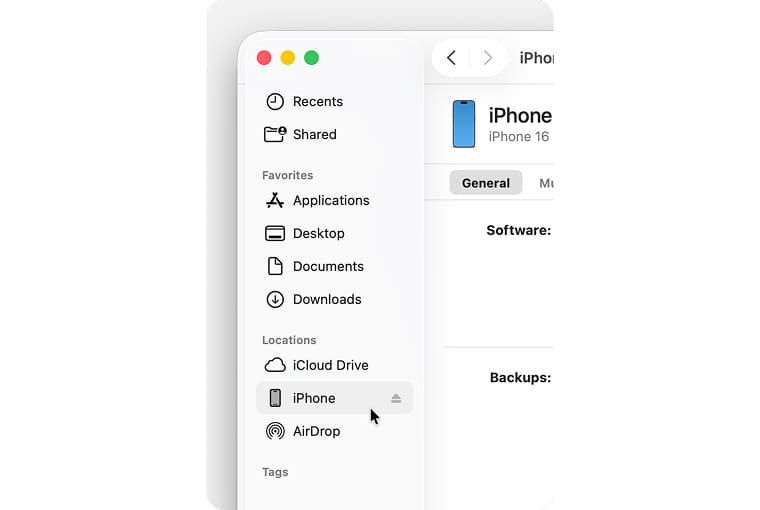
2. Click on the Apps tab to make an app folder for iOS and drag the apps you like to insert in the folder
Once again, rename your iOS app folder and click on Sync button to update your device.
Adding folders to the iPhone dock
You can also add iOS app folders to the dock if you want. All you need to do is just move one of the apps currently in the dock by dragging it to the main area of the home screen. Now, drag a folder to an empty space that is left behind.
Remove apps from iOS folders
When you create iOS app folders, you can see them on your phone’s home screen. If you want to remove some apps from the folder, just follow the steps below:
- Tap on the iOS app folder you want to edit
- Tap on the app you want to remove and drag it outside the folder
Delete iOS app folders
- If you want to delete an iOS app folder, drag each app out of it one by one
- Once all the apps has been removed, the folder will disappear
You can also delete all the apps from an iOS app folder at once by navigating to Settings > General > Reset. From here, select the Reset Home Screen Layout option. Now, all your app folders will be deleted and the apps will be sorted alphabetically on your phone’s home screen.