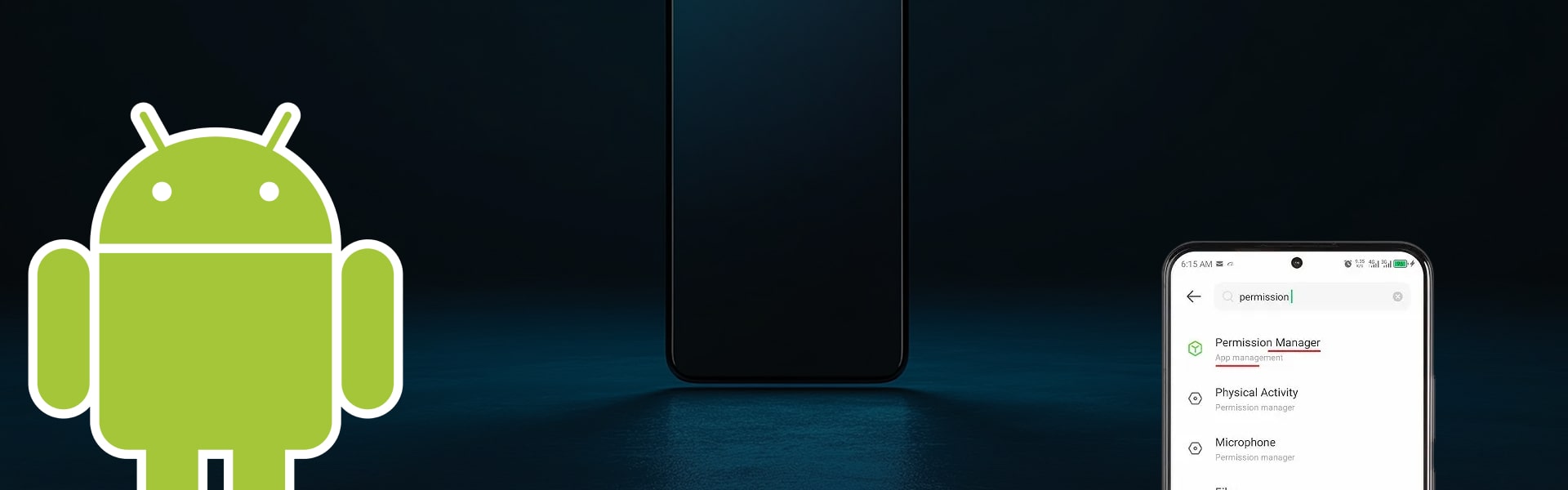
Google has finally provided us with more granular control over app permissions in Android Marshmallow. With Marshmallow, you will be able to have more control over what information and hardware each app is allowed to access. If you want you can also cancel permissions manually for any app. Let’s take a quick walk through the app permission setup of Android 6.0:
Open the Settings app and search for the Apps button. On tapping the Apps button, a list of applications installed on your device will be shown. Choose an app from the list and tap on it to view more information about it. Once your App info screen is open, you will see a Permissions category – simply tap on it. Tapping will take you to the new ‘App Permissions’ screen from here you can manage permissions for different categories of apps. Moreover, older Android apps will automatically get these permissions when you install them.
If you deny the permission(s) of older applications, you will see a warning message pop-up displaying ‘This app was designed for an older version of Android’. If you deny that permission, the app will no longer be functional. You can come back to the screen at any time and grant permission again if you find any problem with the app or your app crashes.
You can also see which permissions an app is using; just tap the Menu button on the App Permission screen and hit All Permissions. This method will give you a clear idea of what an application is actually doing about Permissions. Although you can’t manage individual permissions, you can only choose which category you want to allow permission.
Note: App update can automatically add new ‘sub-permissions’ in a category without intimating you, so be careful.