Internet Explorer11(also known as IE11) stores a large amount of data on your PC such as browser history and temporary Internet files. All these files serve a specific purpose. However, you need to manage and delete them from time to time. Too many browsing data components can negatively affect your browser performance. It may slow down and crash suddenly. It’s very important to know how to manage and delete browsing data components in IE11. That’s why we’ve come up with this tutorial where we’ll guide you throughout the process. Let’s begin:
Read More about web browsers: 10 hidden Firefox tips and tricks you should know
Step-by-step guide to manage and delete browsing data components in IE11
What kind of browsing data components are stored in IE11
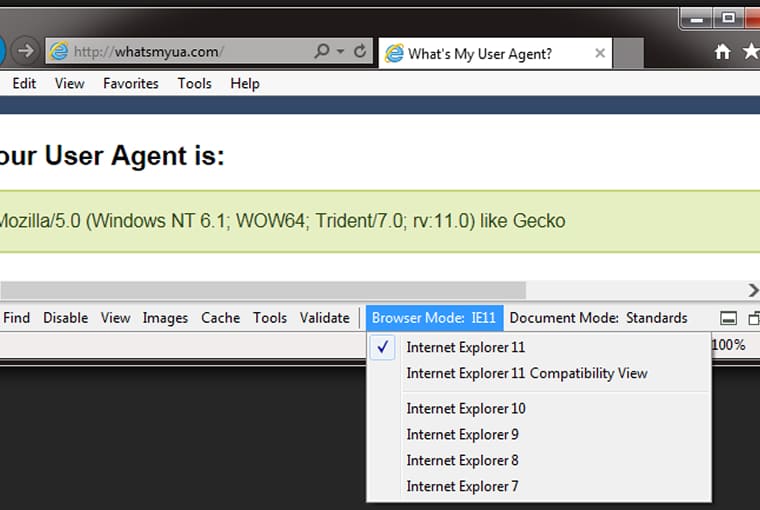
- Browser History
- Download History
- Form data
- Usernames and Passwords
- Temporary Internet files
- Website data and cookies
- Favorites website data
- Tracking protection, ActiveX Filtering, and Do not track
How to delete browsing data components in IE11
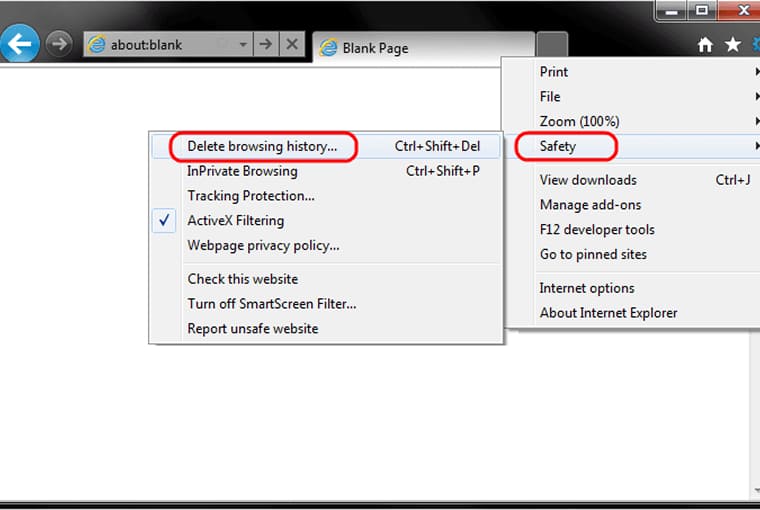
In order to delete browsing data components in IE11, you’ll need to follow a series of simple steps mentioned below:
Step 1. Launch IE11 on your device
Step 2. Click on the gear icon (also called Action or Tools menu) located in the upper right-hand corner of the browser window
Step 3. Select Internet Options from the drop-down menu that appears in front of you. This will display the Internet Options dialogue
Step 4. Now, click on the General tab. You’ll see two buttons labeled Delete and Settings.
There is also an option called Delete browsing history on Exit that allows the browser to delete your browsing history upon closing. However, you’ll need to enable it first. In order to do so:
- Click on the empty checkbox next to the option
Step 5. After enabling the above-mentioned option, click on Delete button
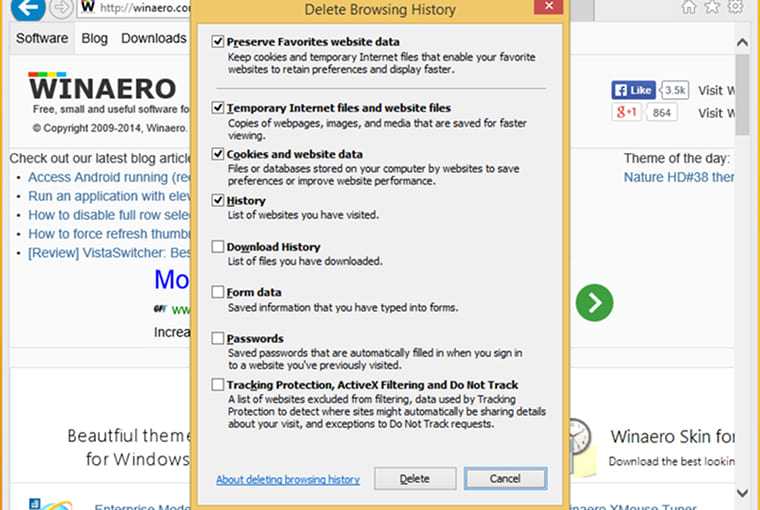
Step 6. Now, a list of different browser data components like browsing history, cookies, and form data will be displayed in front of you. From here, you can select the components you want to delete by clicking on the checkbox in front of them
Step 7. Once you’re satisfied with your selection, click on the Delete button. This will Clear Data Components in IE11
Alternatively, you can use the keyboard shortcut CTRL+SHIFT+DEL to directly navigate to the Internet Options dialogue
Manage browsing data components in IE11
Manage temporary Internet Files in IE11
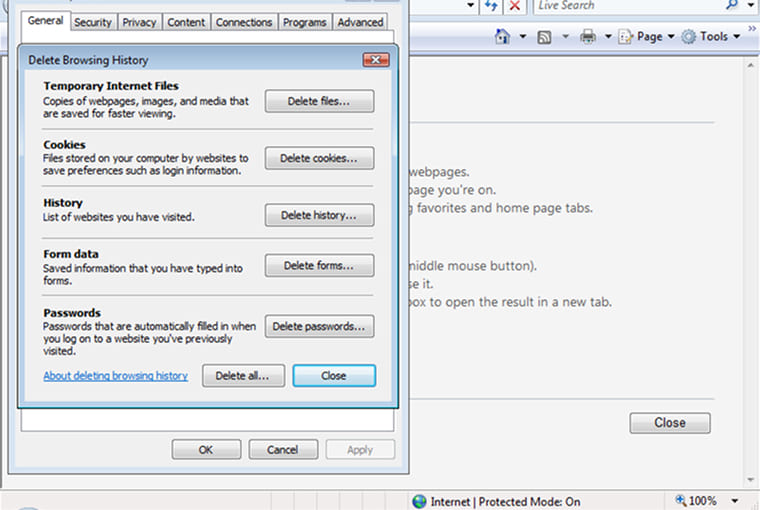
Here’s what you need to do in order to manage temporary Internet files in IE11:
Step 1. Go to the General tab of Internet Options dialogue of IE11
Step 2. Click on the Settings button under the Browser history section. The Website Data settings dialogue will appear in front of you
Step 3. Just click on the Temporary Internet files tab. This will display various options related to Temporary Internet files (Cache) available within the tab
Here, you’ll see four sections. The first section is labeled Check for newer version of stored pages. It allows you to select how often your web browser checks if the latest version of the page is stored on your hard drive.
Below the section you’ll see four options labeled:
- Every time I visit the webpage
- Every time I start Internet Explorer
- Automatically (enabled by default)
- Never
The second section is labeled Disk space to use. It allows you to select how much disk space you want to offer to save IE11’s cache files. In order to make any changes, click on the up/down arrows or manually enter the number of megabytes you want to dedicate for storing temporary files.
The third and final section is Current location. It allows you to make changes in the location of IE11’s temporary files on your hard drive. The section has three buttons namely:
- Move folder that lets you select new folders to store your media files
- View Objects that displays the list of currently installed Web application objects
- View files option that allows you to see all temporary files including cookies
Manage History in IE11
In order to manage history in IE11, just click on the History tab. The web browser will display a list of websites you recently visited. From here, you can increase the duration for which the history is stored by clicking on the up/down button or changing the value manually.
Manage Caches and Databases in IE11
You can also manage Caches and Databases in IE11. You just need to:
- Click on the Caches and databases tab
This will display various details related to website cache and database sizes. You can control them both. You can set a limit on both file and data storage for specific sites and get notified when any of these limits are exceeded.