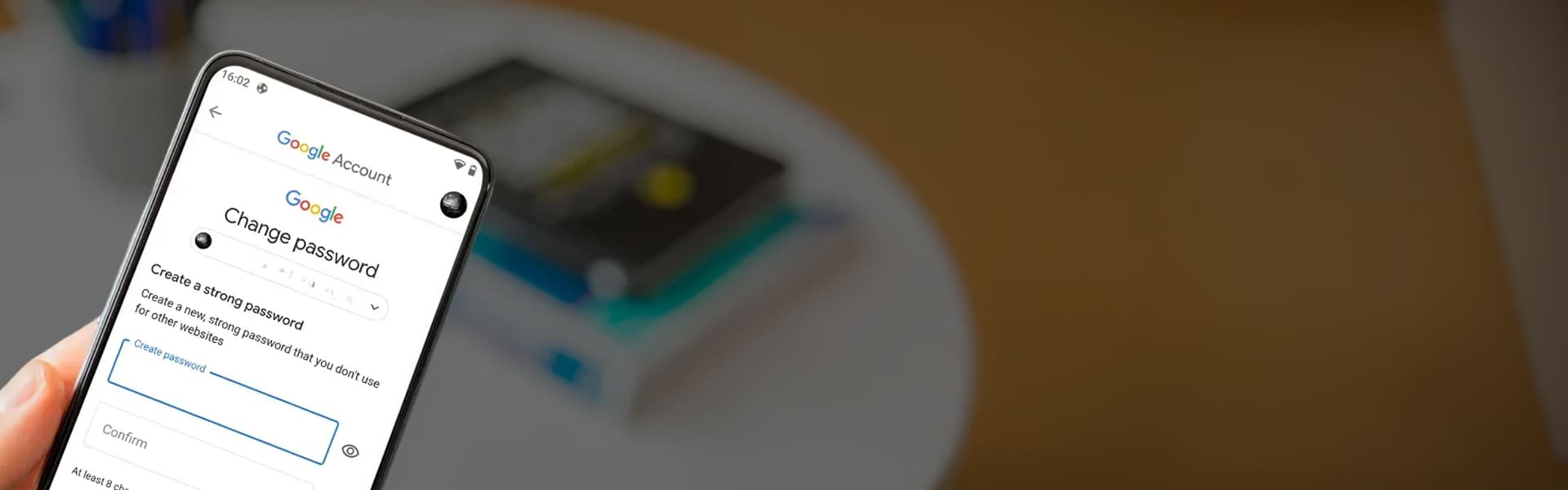
We all know how important it is to secure your Google accounts with strong passwords. These passwords prevent intruders from illegally accessing your account and misusing your personal details. However, entering your password, again and again, to sign in with your account can be quite annoying. Moreover, passwords can be breached easily. Here we have a better alternative, i.e. sign in with your phone instead of a password. After activating the process, you don’t have to type your passwords to sign into your account. Instead, you’ll receive a prompt on your phone. You just need to tap on it.
In this post, we’ll discuss the method in brief:
Read More about Google: Best Google Chrome Extensions that will boost your productivity in 2017
A few things you need to know
Before you proceed further with signing in with your phone, here are a few things you should know first:
- Use only those devices that you use regularly
- Signing in with your phone is safer as compared to using a password
- Several features on your phone (such as Touch ID and Screen lock) need to be turned ON before using the option
Also Recommended: How to use Google offline search feature on Android
Step-by-step guide to sign in with your phone instead of a password
1. Ensure that your smartphone is compatible
First of all, you’ll need to check whether your smartphone is compatible with the process or not. In order to sign in with your phone, you should meet the following criteria:
- Your Android phone must have the latest version of Google Play services
- If you own an iPhone, make sure its iPhone 5s or higher. Also, it should feature Touch ID and the Google app
If your smartphones meet the necessary requirements, you can proceed further. Otherwise, you’ve to look for better alternatives.
2. Setup your phone
The next step is to setup your smartphone so that you can sign in with it. Here’s how to do so:
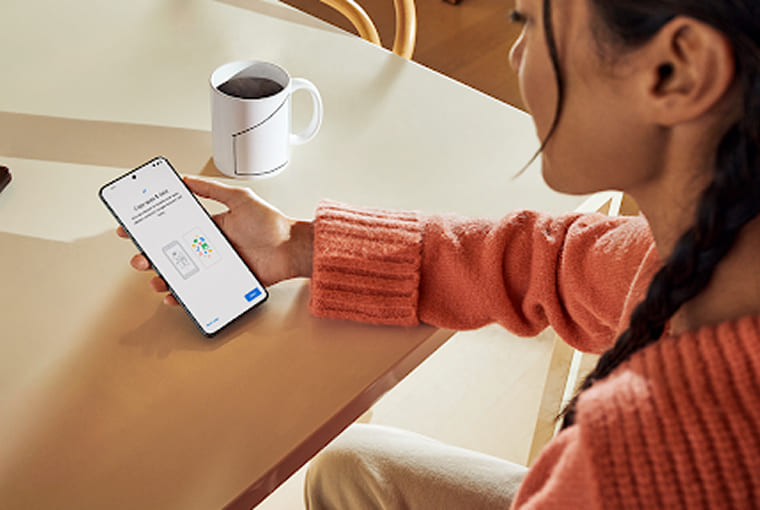
Step 1. Log into your Google account and then navigate to its Sign in & security section
Step 2. Click on the 2-step verification option. You’ll be navigated to a new screen where you’ll see an option called Google prompt under set up alternative second step section. Click on the Add phone button under it
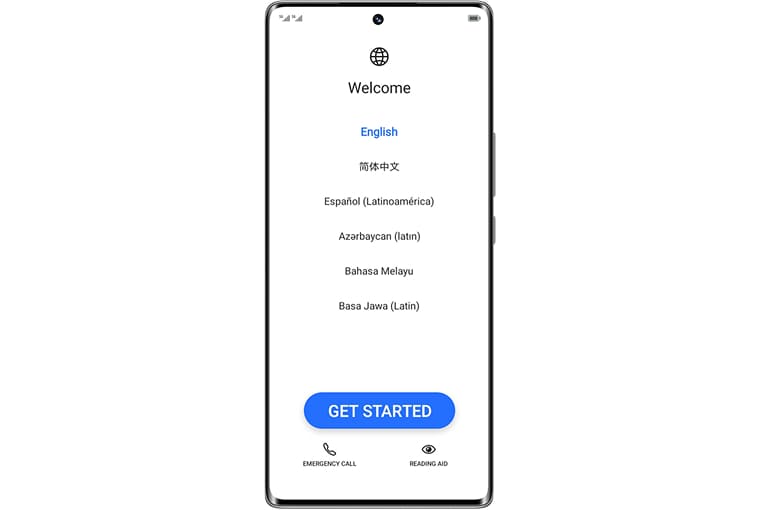
Step 3. A new prompt will open in front of you, asking you to confirm whether you want to get a Google prompt to sign in. Click on Get Started to proceed further
Step 4. In the next screen, you’ll be prompted to set up the devices connected to your account. In order to do so:
In Android
See if there’s a check mark next to Screen lock. If there’s not any, select Add a screen lock option and then follow the onscreen instructions
In iOS
See for a check mark next to Touch ID. If there isn’t any, click on How to set it up option and then follow the on-screen instructions
Step 6. Click Next
Step 7. In the next step, Enter your username and then click Next
Step 8. Google’s prompt will appear on your phone. Tap Yes
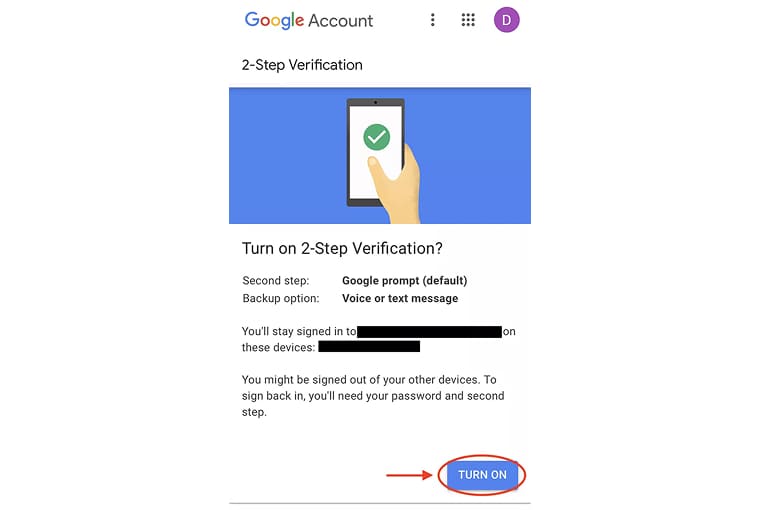
Step 9. In the final step, select turn ON to finish the setup process
3. Sign in with your phone
In order to sign in with your phone, Enter your username and then click on the Next button.
You’ll receive a prompt on your phone saying Trying to sign in? Just tap on Yes
That’s all we’ve in our complete guide on how to sign in with your password instead of a password. Stay tuned for more updates!