When it’s all about tracking the location where you’ve been, the Google Maps Timeline feature stands up as a great utility. It provides relatively exact data of the location. It comes as one of the best tools when you end up misplacing something important like a credit card or your wallet.
You surely wouldn’t like to first recall your memory and then make a list of every single place you visited. In such situations, Google Maps Timeline saves your time and effort.
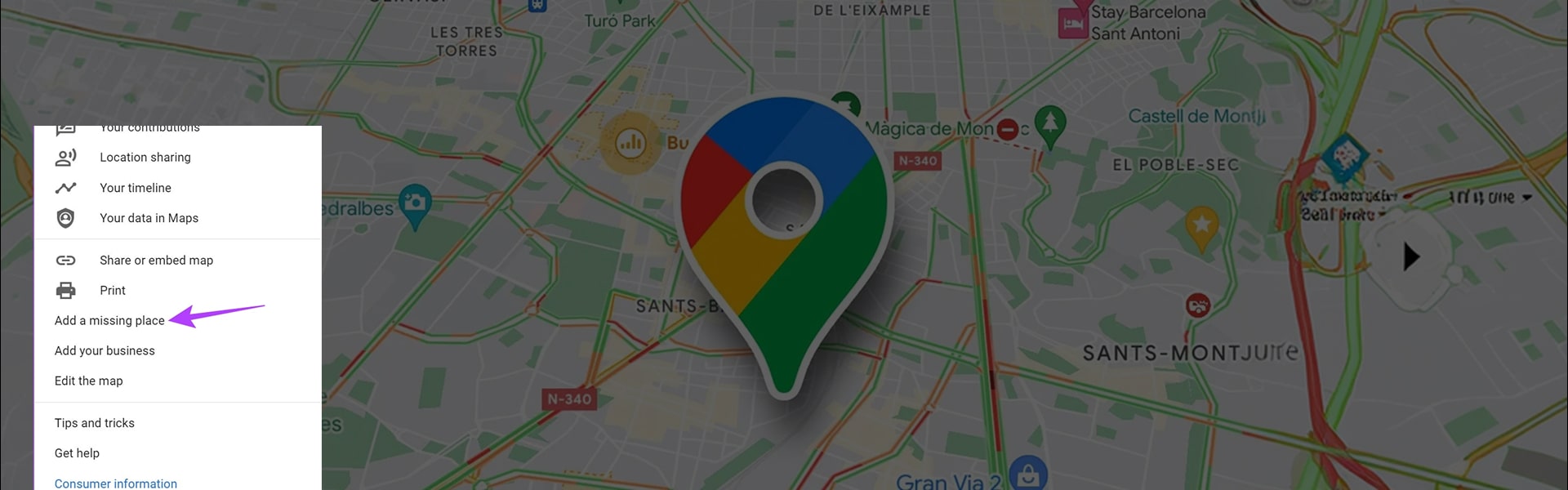
At times, local businesses that are near to each other impose issues to find exact location. Google Maps has brought the solution to this problem already with its brilliant feature to edit incorrect locations on your timeline. Once you’ve updated your app to Maps 9.2, you can add places that are omitted completely.
The update has been rolled out for Android users via Google Play. You can also avail it at APKMirror. The ciphered stamp on the APK assures that the file is real and will replace current copy of Google Maps on your device with proper authorization.
Once you’ve updated, follow these steps:
Step 1: Open Menu in Google Maps and select Timeline.
Step 2: Choose the day you wish to edit. You can tap a particular place on your timeline for missing location; this will open a new Add a Place icon, or you can open the Overflow menu to add a place.
Step 3: Search the place you wish to add and customize the timeline for the time you were there.
There’s another update fractionally related to the Timeline. It’s the coupling of user-submitted images and specific feedback. You can easily search a photo you’ve mentioned and its more than easy to see when it was actually captured.