
If you own iPhone, then you’re probably among those users who end up taking several photos in the same posture and finally find the best one to share or upload on social media accounts. Well, it’s an outstanding way to keep your social profiles up to date, but you may pile up so many duplicate photos on your device. Also, these photos that occupy a considerable amount of storage space on your iPhone. The only solution to deal with this issue is to delete duplicate photos on iPhone.
Removing duplicate photos is never an easy task, especially when you have a huge collection of images on your iPhone. In this guide, we’ll show you two ways to delete iPhone duplicate photos. Let’s discuss them one by one:
Delete duplicate photos on iPhone manually
1. Open the Photos app on your iPhone
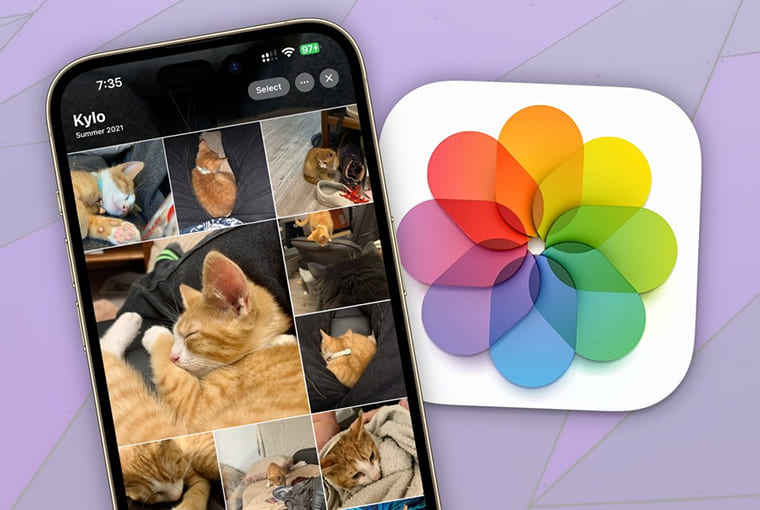
2. Select duplicate images simultaneously and click on the Trash Can icon to delete duplicate photos on iPhone
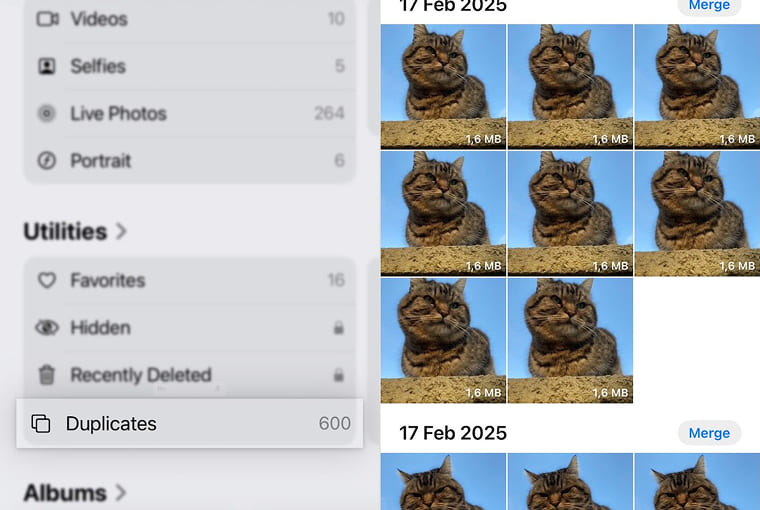
Delete duplicate photos on iPhone with Duplicate Finder app
Duplicate Finder is one of the best utility apps to help you save space on your iPhone that is consumed by duplicate photos. It scans your camera roll or gallery folder and selects similar photos to remove. Here’s how to delete duplicate photos on iPhone using Duplicate Finder app:
1. Download and open the Duplicate Finder app on your iPhone
2. Tap on the ‘Find Duplicates’ button at the bottom of the home screen
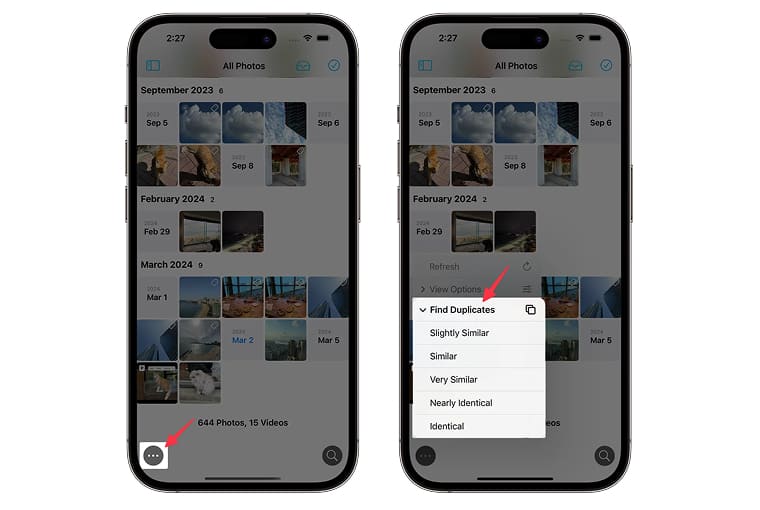
3. Now, the app will ask you if you want to find photos that are identical or similar. If you’re a little confused regarding these options, let us tell you an identical photo is the exact replica of another photo. And a similar photo is the one that has more or less the same object of another one. You can choose any option as per your preferences
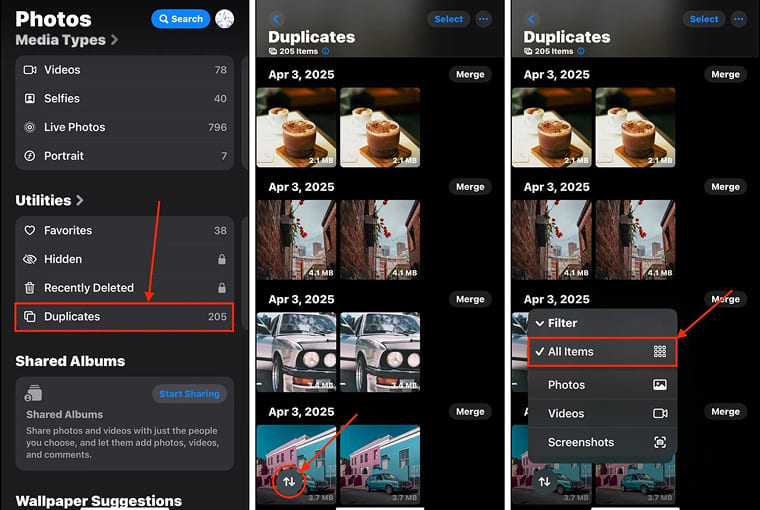
4. The app will scan your camera roll to find duplicate photos on your iPhone
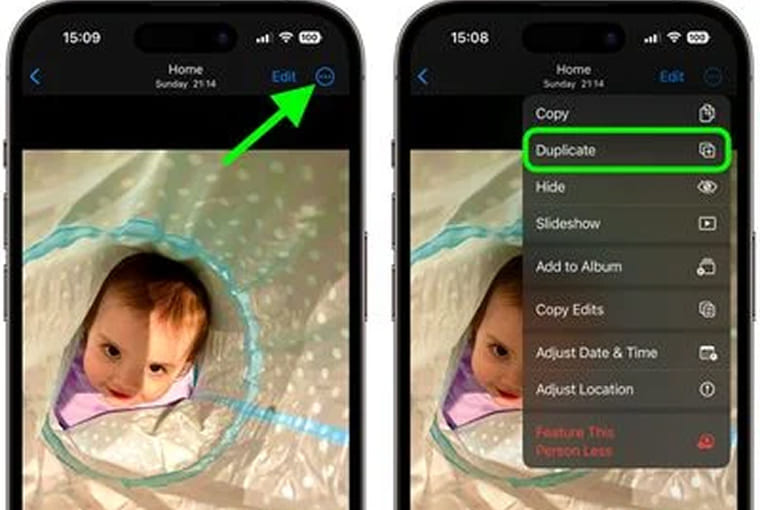
5. Once the scan is completed, the app shows you identical or similar photos it found. You can view them by tapping on the View Duplicates button
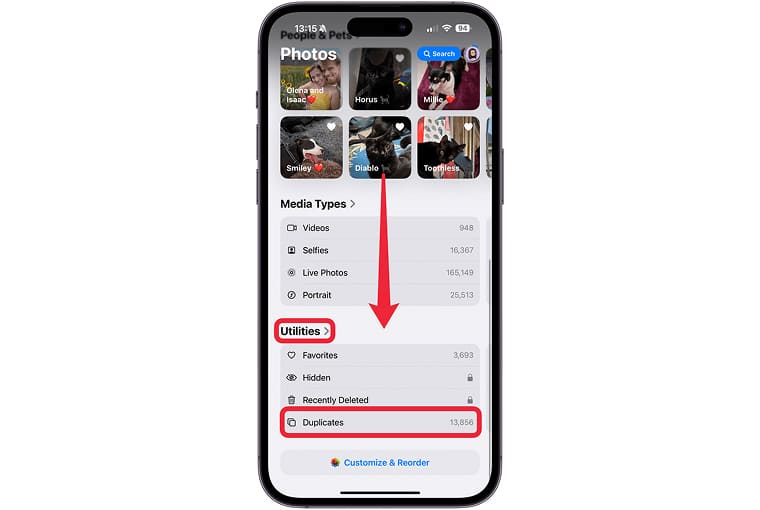
Now, all you need to do is select the photos you don’t want to keep and delete them in one go.
Read more: 8 really cool tips and tricks for new iPhone users