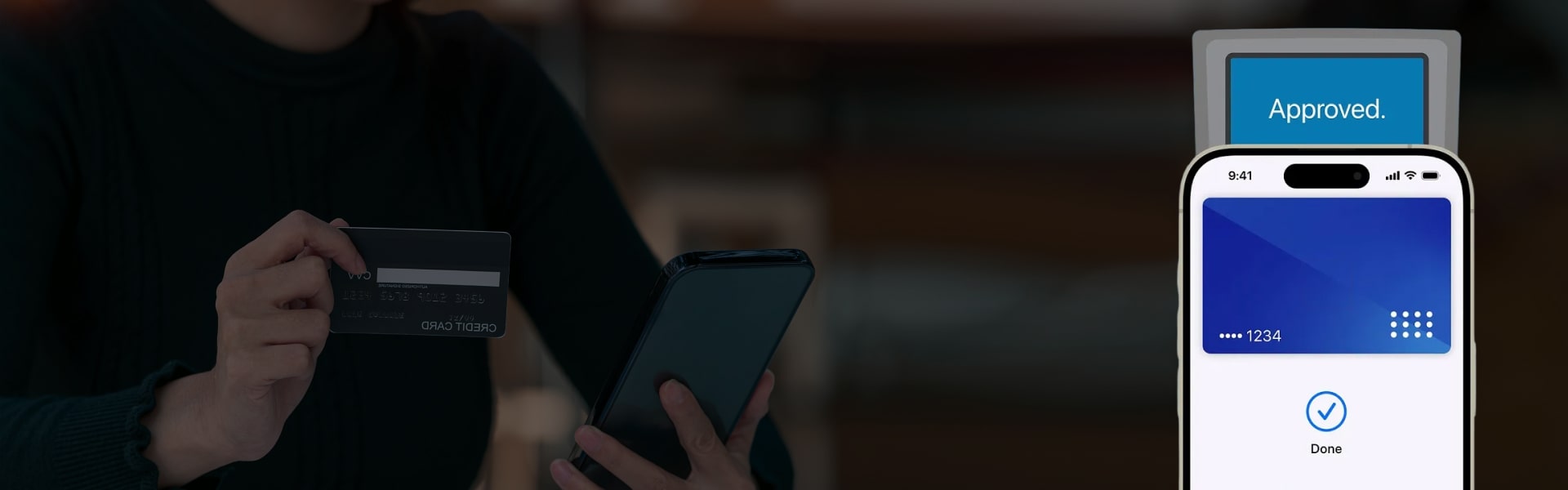
Apple Pay, the mobile payment service by Apple, has changed the way we make payments. Now you can make payments directly from your iPhone, iPad or even the Apple Watch. However, setting up Apple Pay can be a tedious task. Hence, we have come up with this guide to help you get on with the mobile payment platform. Let’s start:
Requirements
Before you proceed with setting up Apple Pay and using it to make purchases, you must know what are the requirements. Here’s what you will require for Apple Pay setup:
- iPhone 6, iPhone 6 plus or later(Apple Pay in stores and within apps)
- iPad Pro, iPad Air 2, iPad mini 3 or later(Apple Pay within apps)
- iOS 8.1 or later(in the US)/iOS 8.3 or later(in the UK)/iOS 9 or higher(in Australia and Canada)
- Australia, Canada, UK or the US as your selected region
- Touch ID or passcode on your device
- An Apple ID signed in to iCloud
- Supported card from a participating bank or store
Setting up Apple Pay on iPhone or iPad
Add a card to your iPhone or iPad:
-
- For iPhone: Open Wallet; For iPad: Go to Settings > Wallet & Apple Pay
- Tap Add Credit or Debit Card
- If you have a supported credit or debit card registered with iTunes, enter the security code for the card. Otherwise, use the camera to capture the info on your card. Now, type the additional info it asks
- Tap Next. Your bank will verify your information and add your card to the Apple Pay. They may ask to provide additional info in case they need. You can verify your card anytime after adding it
Just return to Wallet on iPhone or Settings> Wallet & Apple Pay on iPad, and follow the mentioned steps.
After card verification, you can start using Apple Pay.
Using Apple Pay in stores and within apps
You can use Apple Pay to make purchases in stores accepting contactless payments. Well, you need to look for one of the following symbols:
You can also use the platform to make payments within participating apps selling you goods and services. But first of all, you need to look for the following buttons:
Making Payment in stores using Apple Pay
To make payment using your default card:
- Hold the top of your iPhone within an inch (or 2.5 cm) of the contactless reader and your finger held on Touch ID without pressing it. In case you have turned on Automatic Selection on the respective store card, the store card will be used instead of your default card.’
- In case you need to choose between Credit and Debit on the terminal, it’s better if you choose Credit. Choosing Debit may not always work with some older merchant payment terminals.
Make payment with different card on your iPhone
For this:
- Hold the top of your iPhone near the contactless reader without placing your finger on Touch ID to see your default card on screen
- Tap on the default card and from the list tap the one you want to use
- Place your finger on Touch ID and move your iPhone near the reader to proceed with the payment
For a faster checkout, you can make payment in advance. For this:
- Double-click the Home button, when your iPhone is locked
- Your default card will appear. You can switch cards by tapping the one you want to use
- Place your finger on Touch ID until you see the option Hold Near reader to Pay
- Hold the top of your iPhone near the reader to send payment information
Gentle Reminder
If you are residing in the UK and you are making a purchase of more than £30, you might not be able to use Apple Pay at some merchants. Similarly in Canada, if you are using a card other than American Express and making a purchase of more than $100, you can’t use the platform at some merchants. In Australia, you might be asked to enter a pin if using a card other than American Express and making a purchase of more than $100.
Using a rewards card with Apple Pay
Using Apple Pay, you can easily receive or redeem rewards at participating stores. For this you have to add a rewards card to Wallet.
- In case you have turned on Automatic Selection on the pass, place your finger on Touch ID and hold the iPhone near the contactless reader when asked
- If you haven’t turned the Automatic Selection on the rewards card, open the Wallet app and tap the rewards you want to use and proceed further with the payment.
Pay with Apple Pay within apps
- Tap on the Buy with Apple Pay/Apple Pay button
- Review your payment information and contact details. Enter your details if needed.
- Place your finger on Touch ID to complete the payment. When the payment information is sent, you’ll see a checkmark on the screen
Managing your cards on iPhone and iPad
Change your default card
For this, follow the set of instructions mentioned below:
On your iPhone:
- Open Wallet
- Touch and hold your finger on the card you want to use as default
- Drag the card in front of other cards in the Apple Pay section
On your iPad:
- Go to Settings > Wallet & Apple Pay
- Tap Default Card
- Choose new card
Updating address, card information and contact details
To update address, email or phone number:
- Go to Settings > Wallet & Apple Pay
To update the billing address:
- Go to Settings > Wallet & Apple Pay
Remove a card
- Go to Settings > Wallet & Apple Pay
- Tap the card you want to remove
- Tap Remove card option
Turn on Automatic Selection on a store or rewards card
- Open the Wallet app
- Tap the Store card or rewards card
- Turn Automatic selection on or off
Get help if your device is lost or stolen
In case your device is lost or stolen, you can remove your cards from Apple Pay via iCloud.com. To do so:
- Sign in > go to Settings > Choose your device > remove your cards in the Apple Pay section
If Find My iPhone feature is turned on, you can also use following ways:
- Turn on Lost mode, lock your device and suspend Apple Pay
- You can erase your device remotely
You can also suspend or remove your cards from Apple pay by calling the bank. You can also take help of the following video:
Stay tuned for more setup guides.
Know also how to: Set up Amazon Echo